
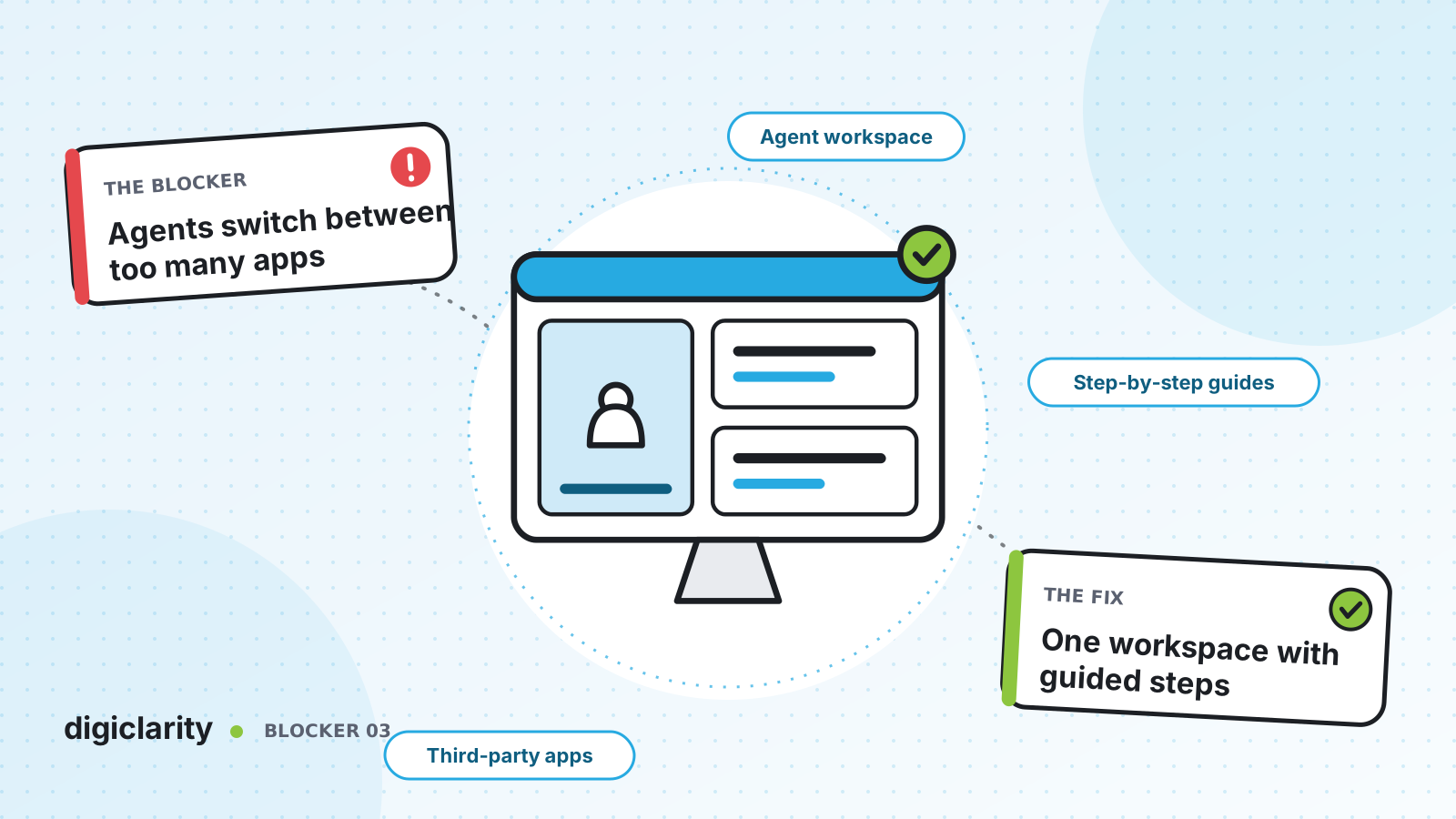
The blocker
Watch an agent take a call. The softphone is in one window. The CRM is in another tab. The order system needs its own login. The knowledge base is in a third browser, and the notes go into a spreadsheet at the end. While the customer explains the problem, the agent is searching for the right screen.
New agents take weeks to learn where everything lives. Experienced agents build their own shortcuts, and every agent ends up doing the same job a slightly different way. Handle time goes up, after-call work grows, and simple mistakes, like updating the wrong record, become common.
Why it happens
- Tools were added one at a time. Each new system solved one problem and brought its own window.
- Nothing connects the call to the screen. When a call arrives, no application knows who is calling, so the agent has to search.
- The process lives in people’s heads. There is no on-screen guide for a refund, a rebooking or a claim, so agents rely on memory or a printed sheet.
- Each channel has its own tool. Calls, chats and emails are handled in different places.
How Amazon Connect solves it
Amazon Connect includes an agent workspace that brings the agent-facing features together in one browser window. You then add your own applications and workflows to it.
1. Start from one workspace for every channel
The workspace holds the contact controls agents use for calls, chats, emails and tasks. It also includes first-party applications: Customer Profiles for customer information, Cases for tracking issues, Tasks for follow-up work, and agent assist for real-time recommendations.
AWS describes the goal plainly on the chat channel page: agents get a single interface for voice, chat and tasks, which reduces the number of tools they learn and screens they use. You can also choose a layout. The Modern layout puts voice controls in a bar at the top, so agents have the full area below for applications.
2. Bring your own applications into the workspace
You can integrate third-party applications into the workspace. AWS gives the example of a proprietary reservation system or a claims management dashboard. A standard application is a web app that Amazon Connect shows in an iframe. A service is a headless app that runs in the background and can react to contact events, such as connect, disconnect or after contact work.
Agents open apps from the Apps launcher, and can pin one so it stays open and opens automatically for each new contact. Access is controlled through security profiles, so each team sees only the apps it needs.
Third-party apps are supported only in the Amazon Connect agent workspace, not in custom agent applications. Decide which route you are taking before you build.
3. Guide the agent through the work
Step-by-step guides show agents what to do at each point in a workflow, such as a claim submission or a travel rebooking. You build a guide as a flow with the Show view block, and any flow block can branch on answers or call your systems with Lambda.
To choose the right guide for each contact, add a Set event flow block and set the Default flow for Agent UI, as described in Invoke a guide at the start of a contact. You can branch on the queue, an IVR answer or customer information. Guides start as soon as the contact is offered to the agent, before they accept it.
4. Screen pop the right information and app
A guide can show contact attributes at the start of a contact with a Detail view, so the agent sees the caller’s details and the reason for the call before saying hello. A guide can also screen pop a third-party application. The Application component embeds it in the Guides tab. The App Launch component opens it in its own tab, with a path that takes the agent straight to the right page, such as a specific order.
What good looks like
An agent works in one window. When a call arrives, a guide is already open with the customer’s name, the reason for the call and the next step. The order system is open on the right record. Customer history and open cases are one tab away. A chat or an email looks the same as a call. New agents follow the guide instead of a printed sheet, and every agent handles a refund the same way.
Where to start
- Sit with five agents for an hour and list every window they open on a typical contact.
- Pick the two or three applications used most and check that they can be shown in an iframe.
- Move agents to the agent workspace and add those applications as third-party apps.
- Build one step-by-step guide for your most common contact reason, and measure handle time before and after.