
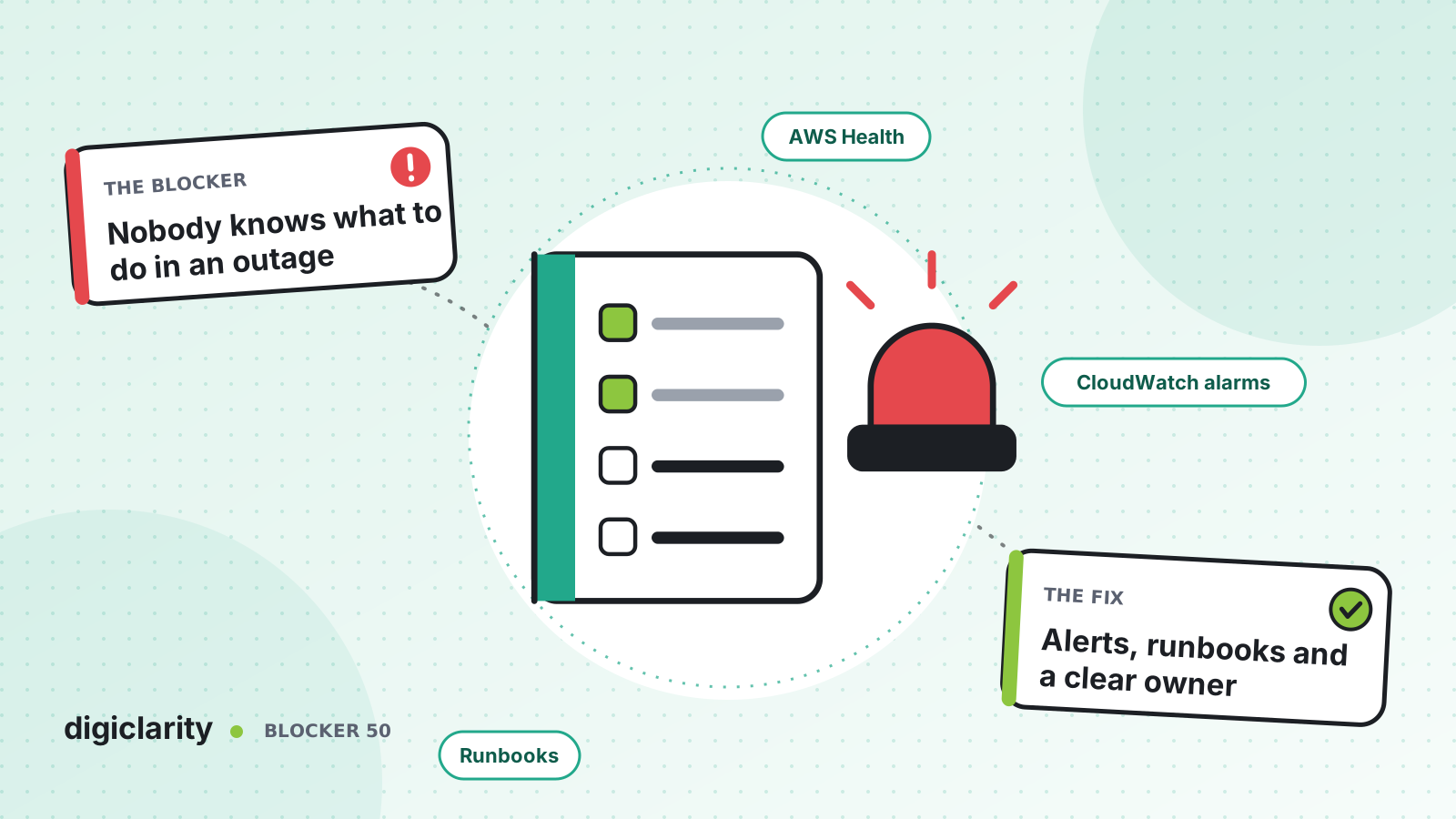
The blocker
At 9:40 a.m. a supervisor messages the IT channel: customers say the main line rings and then drops. Three engineers start looking at once. One checks the flows, one checks the phone numbers, one wonders whether AWS is having a problem. Nobody is sure who is in charge, nobody has the AWS Support login, and nobody tells the contact center floor what to say to customers. Forty minutes later someone finds the cause: a change made the night before.
The monitoring may have been there. What was missing was an incident process: who responds, what they check, how they escalate and what the team learns afterward.
Why it happens
- Alerts go to a shared inbox. Everyone sees them, so nobody owns them.
- No runbooks. Each incident starts from a blank page, and the steps live in one person’s head.
- “Is it AWS?” takes too long. Teams guess instead of checking a known source.
- Escalation is unclear. Nobody knows the support plan, or what information AWS Support needs.
- No review. The same incident happens again because nothing changed after the first one.
How Amazon Connect solves it
1. Know whether it is AWS or you
AWS Health gives visibility into the availability of AWS services and the health of your resources. The AWS Health Dashboard is available to every customer at no extra cost and needs no setup. Its public Service health page shows events across Regions. When you sign in, Your account health shows events that can affect your own account.
Do not rely on someone remembering to look. AWS Health sends events to Amazon EventBridge. Create a rule that sends Health events for the services you use to the same channel as your alarms. AWS notes that public events can take up to an hour to start arriving after you create the rule, so set it up before you need it.
2. Send alarms to a person, not an inbox
Our monitoring and alerts post covers which Amazon Connect metrics to alarm on. This step is about where alarms go. CloudWatch alarms can notify through Amazon SNS or AWS User Notifications. User Notifications delivers to email, chat and the AWS Console Mobile Application, and can aggregate notifications during an event so responders are not flooded.
Route each alarm to an on-call rotation with one named person at a time. Put a runbook link in the alarm description, so the person paged knows where to start.
3. Write runbooks for the incidents you will have
The AWS Well-Architected Framework describes a runbook as a documented procedure that produces the same outcome every time, no matter who runs it. Each one should state the desired outcome, the tools and permissions needed, and the error-handling and escalation path. The Amazon Connect operational excellence guidance recommends using the CCP troubleshooting guide to create runbooks and playbooks for agents and supervisors to follow when they hit issues.
A good first set for Amazon Connect covers: calls failing at the start, flow errors rising, a Lambda integration failing, agents unable to log in, and poor audio. Each one starts the same way: check AWS Health, then check CloudTrail for recent changes. AWS’s routing isolation guide shows how to use the contact record and flow logs to decide whether a problem is inside Amazon Connect or outside it, at the carrier or the device.
Include a line for the contact center lead: what to tell agents, and whether to switch to an emergency message.
4. Automate the steps you repeat
AWS Systems Manager Automation runs runbooks as code, with approvals where needed. An automation can be started by an EventBridge event. Start with short, frequent steps, such as collecting the recent CloudTrail events and alarm history into one place for the responder. The automation steps themselves are something you build and test.
5. Escalate to AWS Support with the right details
Know your support plan before an incident. AWS Support case management explains that Basic Support cannot open technical cases, and that you choose a severity when you create a case. Describe the problem in detail and include resource information. For Amazon Connect, that means the instance ARN, the Region, affected contact IDs, times and what changed. AWS’s operational excellence guidance recommends AWS Enterprise Support for business-critical workloads.
6. Review every significant incident
AWS’s guidance on post-incident analysis is to examine the contributing factors behind each customer-impacting event, turn the findings into tracked actions with named owners, and share what you learn across teams. Keep reviews blameless and short. Every review should end with changes: a new alarm, a fixed runbook or a safer deployment step.
What good looks like
An alarm pages one on-call engineer two minutes after calls start failing, with a runbook link. They check AWS Health, see no event, and find a flow change in CloudTrail. They roll it back while the contact center lead tells agents what to say. The review the next day adds a test that would have caught the change.
Where to start
- Create an EventBridge rule for AWS Health events and send it to your alert channel.
- Route every CloudWatch alarm to a named on-call person, not a shared inbox.
- Write five runbooks for your most likely incidents, starting with “calls fail at the start”.
- Confirm your AWS Support plan and who can open a case.
- Hold a short review after every significant incident, and track its actions to done.