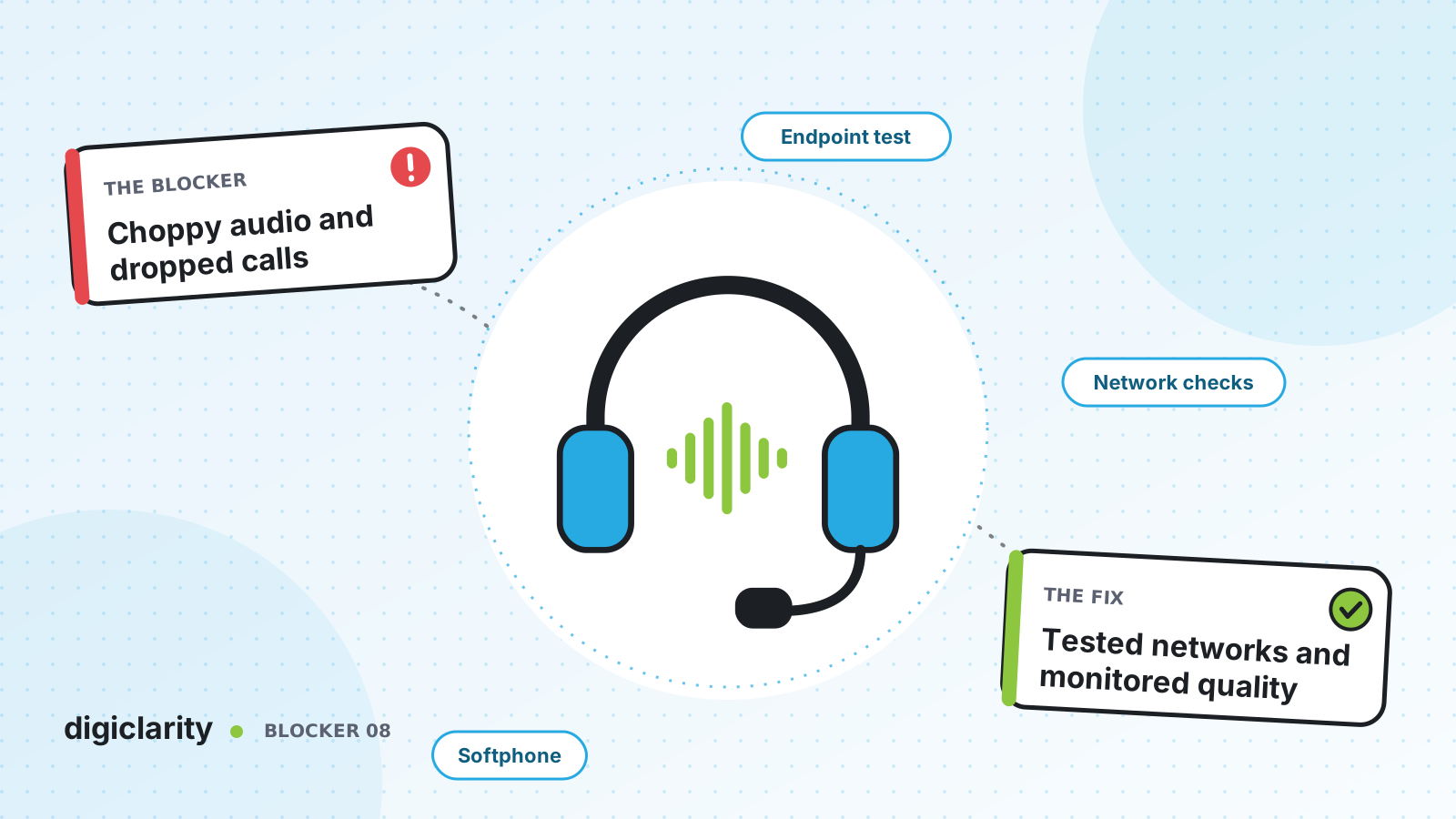
The blocker
The customer says the agent sounds robotic. The agent says the customer keeps cutting out. A few calls a day drop in the middle of a conversation. Supervisors hear about it from complaints, IT cannot reproduce it, and before long someone suggests the cloud contact center is the problem.
Usually it is not. Softphone audio travels from the agent’s headset, through their computer, browser, home or office network, VPN and firewall, before it reaches Amazon Connect. A weak link anywhere on that path sounds the same to the customer: bad.
Why it happens
- Networks block or slow the media path. Firewalls, proxies and VPNs that were not set up for real-time audio cause choppy sound, one-way audio and drops.
- Agents work on Wi-Fi at home. Shared, congested connections add latency and packet loss.
- Workstations are underpowered. Too little CPU or memory, plus other software competing for it, degrades audio.
- Headsets vary. Cheap wireless or built-in microphones pick up noise and drop out.
- Nobody measures quality per call. Without data, every complaint is an anecdote.
How Amazon Connect solves it
AWS documents the requirements, the tests and the data you need. The work is to apply them consistently.
1. Set up the network the way AWS documents it
Set up your network to use the CCP lists the endpoints and ports agents need. AWS notes that the CCP’s needs are less intrusive than traditional VoIP, but the media path must be open. When troubleshooting your network, AWS asks you to make sure UDP 3478, TCP 443 and web sockets are allowed, and recommends:
- Fixed Ethernet instead of Wi-Fi wherever possible.
- Fewer devices on the same Wi-Fi channel, and no large file transfers over it during calls.
- Routers that can handle the full bandwidth of the internet connection.
For remote agents, AWS notes that unstable connections, packet loss and latency get worse when a VPN is required, and that agents ideally sit close to the AWS Region of your instance.
2. Give agents the right workstation and headset
The headset and workstation requirements recommend a USB headset and list minimums for the CCP alone: 2 GB of RAM, a 2 GHz processor, and 54 Kbps up and down for a one-to-one audio call. Budget more for the operating system and everything else the agent runs. Mobile browsers are not supported for the CCP or the agent workspace.
If your agents use virtual desktops, AWS supports audio optimization in the agent workspace for Amazon WorkSpaces and several other cloud desktop platforms. It redirects media from the agent’s local desktop to Amazon Connect, reducing network hops.
3. Test every agent’s connection
The Endpoint Test Utility checks that the browser supports WebRTC and can reach the microphone and speakers. It tests latency to every active Region and to your instance, and validates the ports needed for media. When troubleshooting your network, AWS says the average latency the tool reports should not exceed 300 ms. Results download as a JSON file you can attach to a support case. Run it from each agent’s machine before go-live, and again whenever someone reports a problem.
4. Diagnose with data, not guesses
AWS gives a structured path in Troubleshoot audio quality issues: start from the symptom, such as choppy, robotic, one-way or humming audio, then narrow down where on the path it happens.
- QualityMetrics. Amazon Connect records a quality score and potential issues for the agent’s and the customer’s audio on each connected call. You get them through the DescribeContact API and contact record streams, not the admin website.
- DisconnectDetails. For dropped calls, combine it with agent hierarchy and device info to see whether one agent, one site or everyone is affected.
- Workstation checks. The workstation guide covers recent operating system or browser updates, trying another headset, and software that takes exclusive control of the microphone.
- CCP logs. Agents can download their logs from CCP settings. The CCP Log Parser shows API latency and WebRTC metrics for the call.
If problems persist, AWS lists what to include when you open a case: three to five examples from the last 24 hours, contact IDs, recordings and test results.
5. Improve and monitor
Two agent settings help. Audio Enhancement reduces background noise or isolates the agent’s voice for softphone users, and needs at least a 4-core CPU. Persistent connection keeps the softphone’s media connection open for a few minutes after login and after each call, so the next call connects faster.
Amazon Connect also sends instance metrics to CloudWatch. ToInstancePacketLossRate reports packet loss for agent softphone audio, so you can set an alarm and see trouble before the complaints arrive.
What good looks like
Every agent passes the Endpoint Test Utility before their first live call. Home agents are on wired connections with USB headsets. When a complaint comes in, the team looks up the contact’s QualityMetrics and the agent’s CCP logs, and knows within minutes whether it was the network, the workstation or the headset. A CloudWatch alarm on packet loss tells IT about a site-wide problem before the floor does.
Where to start
- Check your firewall, proxy and VPN rules against the AWS CCP network page.
- Have every agent run the Endpoint Test Utility and collect the results.
- Standardize on USB headsets and the minimum workstation spec.
- Start pulling QualityMetrics for complained-about calls, and add a CloudWatch alarm on ToInstancePacketLossRate.