
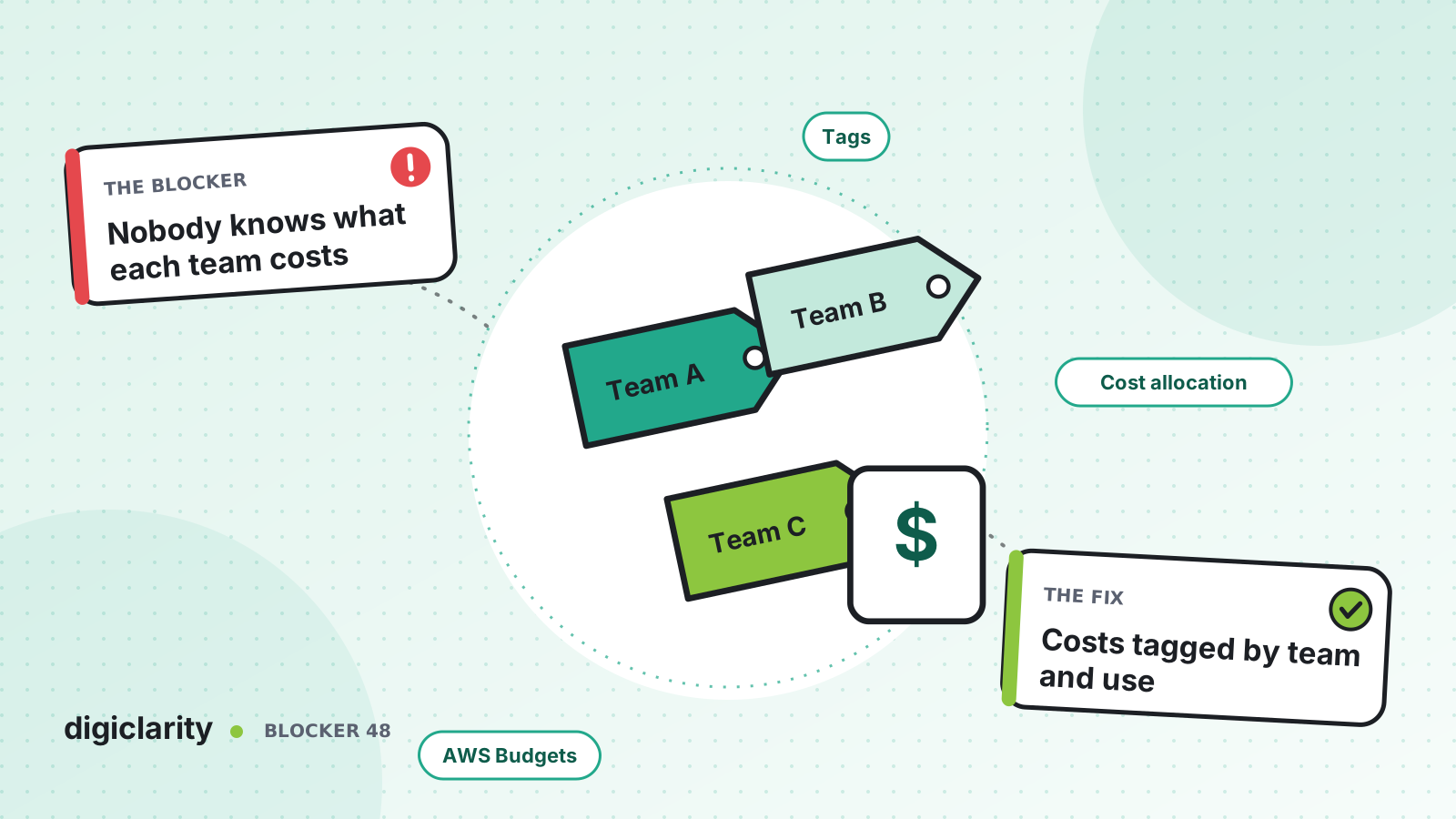
The blocker
Three lines of business share one Amazon Connect instance. Each has its own phone numbers, queues and Lambda functions. At the end of the month the bill shows Amazon Connect as a total by usage type, with Lambda, S3 and Kinesis as separate totals. Finance splits it by headcount. The team that launched a new chat channel pays the same share as the team that cut its call volume in half. Nobody can tell whether a change saved money.
In our post on contact center costs we covered why pay-as-you-go pricing helps the business. This post is about the engineering work that makes each team’s share visible.
Why it happens
- No tagging scheme. Nobody agreed which tag keys to use, so each team invents its own, or none.
- Contacts are not tagged. By default, Amazon Connect channel usage is summarized at the account level, and the flows never add tags to contacts.
- Resources are tagged by hand. Some Lambda functions and buckets have tags, others do not, and the spelling varies.
- Tags are never activated. Tags exist on resources, but nobody switched them on in billing.
How Amazon Connect solves it
1. Tag every contact in the flow
By default, Amazon Connect channel usage is summarized at the account level. Granular billing changes that. Amazon Connect adds system-defined tags to each contact: aws:connect:instanceId and aws:connect:systemEndpoint (the phone number), plus aws:connect:transferredFromEndpoint for third-party transfers. You can add up to 6 user-defined tags per contact with the Contact tags block or the TagContact API.
A few rules shape the design:
- Put the Contact tags block early in the first flow each contact enters. Amazon Connect applies user-defined tags to new contact segments for transfers and similar cases.
- You can update tags with
TagContactup to 3 hours after the contact disconnects, but those changes are not reflected in billing. The contact record gets the new value; the bill keeps the old one. Get the tag right in the flow. - Contact tags are for cost allocation only. You cannot filter contact search with them or use them for access control.
- Do not put personal or sensitive data in tags.
Tags also appear in contact records and in the data lake contact record table, so you can join usage and contact data later.
2. Tag the resources around the instance
The contact center’s cost is more than Amazon Connect. The Lambda functions behind flows, the S3 buckets for recordings and the Kinesis streams for data are billed separately. Give them the same tag keys.
Amazon Connect resources can be tagged too: instances, queues, flows, phone numbers, routing profiles and more, with up to 50 tags per resource. Most support tagging on creation. Set tags in the same infrastructure code that creates each resource, so nothing goes live untagged. Tag Editor can find resources that have no tags, so you can fix the ones that were missed.
3. Keep tags consistent across accounts
Tag keys and values are case sensitive, so CostCenter and costcenter are two different tags in a report. Tag policies in AWS Organizations let you standardize tags across your accounts, including the case of keys and values. AWS’s tagging best practices whitepaper covers how to choose a scheme by team, purpose and environment.
4. Activate the tags and report on them
Tags do nothing for billing until you activate them. In the AWS Billing and Cost Management console, under Cost Allocation Tags, activate both the system-defined and user-defined tags. Activation can take up to 24 hours, so do it well before the first month you need to report.
Then group by tag in AWS Cost Explorer, which shows up to the last 13 months. For finance systems, AWS Cost and Usage Reports add tag columns, and you can include resource IDs for a line per contact. AWS warns that resource IDs can make the report files much larger.
5. Give each owner a budget and an alert
AWS Budgets tracks cost against a target and can alert on actual or forecasted spend, by email or Amazon SNS. AWS Cost Anomaly Detection can monitor specific cost allocation tags, so an unusual change in one team’s spend reaches that team.
What good looks like
Every contact carries a department tag from the first flow. Every Lambda function, bucket and stream carries the same keys, set in code. Each team lead opens Cost Explorer, filters by their tag and sees this month against last. A budget alert reaches them before the month ends. Finance allocates the bill from tags, not headcount.
Where to start
- Agree two or three tag keys with finance, such as
DepartmentandCostCenter, and write down allowed values. - Add a Contact tags block to the first flow for each phone number.
- Add the same tags to every resource in your infrastructure code, and set a tag policy.
- Activate the cost allocation tags now, so the data is there when you need it.
- Create a Cost Explorer view and a budget for each owner, and review them monthly.