
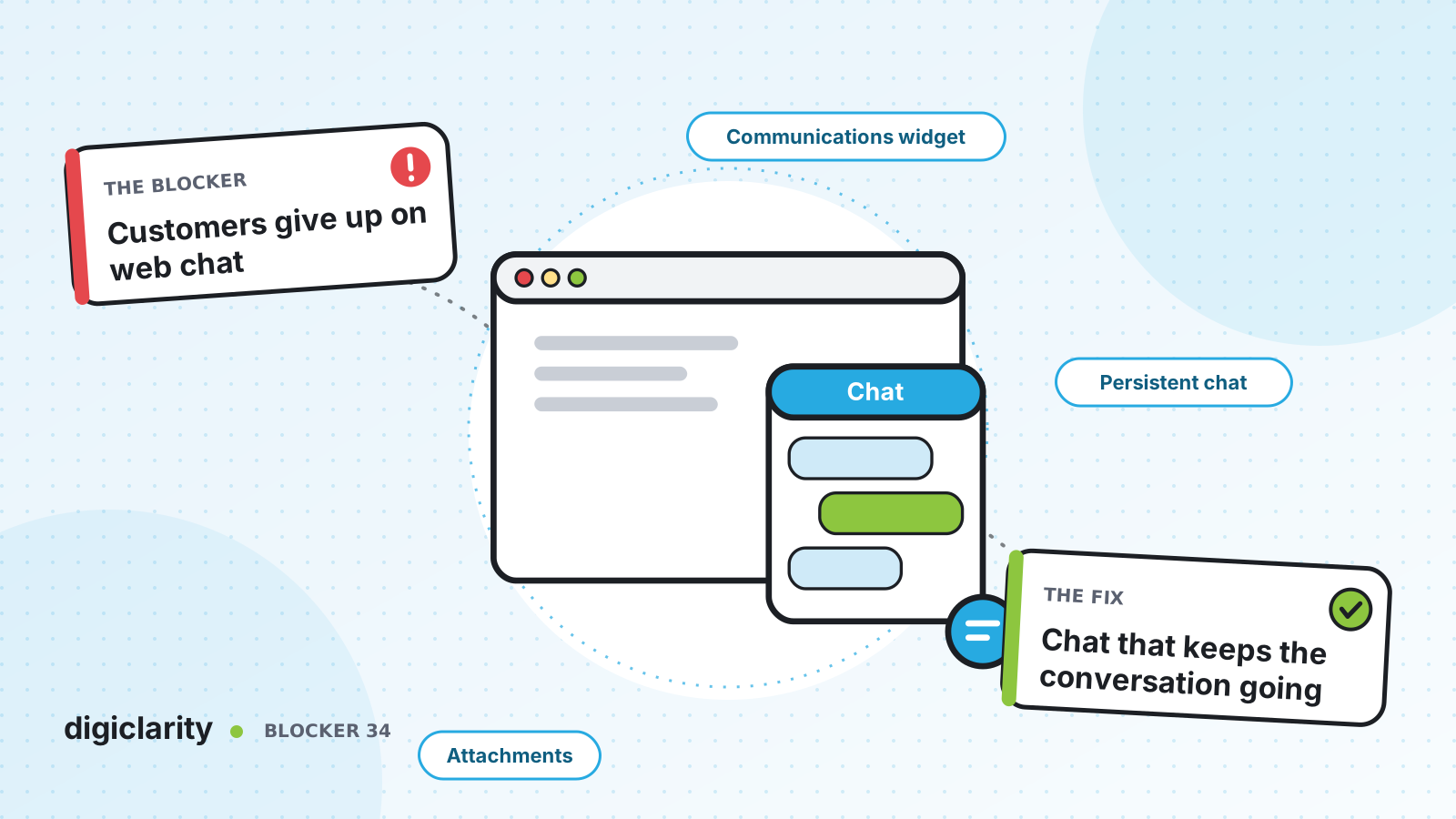
The blocker
A customer opens the chat on your website with a quick question. A message says an agent will be with them shortly. Then nothing. No position in line, no estimate. They switch to another tab to keep working, miss the agent’s reply, and the chat times out. Or they click to another page and the chat starts over. Some try to describe a problem that would take one screenshot to show, and give up.
Chat abandonment rarely means customers don’t want to chat. It means the chat experience asked them to wait in silence, stay on one page, or type out what they could have shown.
Why it happens
- The queue is silent. Voice callers hear music and messages. Chat customers often see nothing while they wait.
- The widget forgets. A page change or a new tab starts a new chat, and the customer loses their place.
- Customers can’t see that the agent replied. If they move to another tab, the reply sits unread.
- There is no way to share files. Error messages, photos and documents have to be described in text.
- The agent starts cold. The chat arrives with no idea who the customer is or what page they were on.
How Amazon Connect solves it
Amazon Connect provides a hosted communications widget that you configure in the admin website and add to your site with a short snippet. Because Amazon Connect hosts it, the latest version is always live. The rest is configuration and flow design. We covered enabling chat and routing it with other channels in Voice, chat, SMS and email live in separate tools.
1. Start the chat already knowing the customer
Your website can pass contact attributes into the widget, such as a member ID or the page the customer is on, inside a JSON web token signed with the widget’s security key. Agents see them in the Contact Control Panel, and flows can use them. A pre-chat form captures the reason for the chat before it starts. If your customers sign in first, pre-chat authentication with the StartChatContact API marks the chat as authenticated.
2. Don’t let the queue go quiet
The default customer queue flow does not support chat out of the box, because its Loop prompts block is voice only. AWS recommends creating your own. In a chat queue flow, Play prompt sends text messages, and Get metrics can return chat-only metrics for the queue, so the flow can tell the customer how busy it is and offer alternatives.
The queued callback in Transfer to queue is not available for chat. Instead, when the wait is long, the flow can offer to take the request offline and use a Create task block, which works for chat contacts, to route a follow-up to an agent now or at a scheduled time.
3. Keep the customer connected when they look away
The widget sends browser notifications when an agent replies and the customer is not on the page with the chat. A red dot shows on the minimized widget. Both are included without extra setup, once the customer allows notifications. You can turn on Delivered and Read receipts so customers know their message arrived.
By default, a new tab starts a new chat. A few lines of code added to the widget snippet enable chat session persistence across tabs, so the customer reconnects to the chat they already started. You can also launch the widget from your own “Chat with us” button.
4. Let customers show the problem
With attachments enabled, customers and agents can share files in chat. You turn sharing on for the instance, choose the Amazon S3 location and set allowed file types and size limits. The hosted widget supports this directly. Custom chat interfaces use the attachment APIs.
5. Decide what happens when the customer goes quiet
Chat timeouts mark a customer or agent as idle and can disconnect after a set time, from 2 minutes to 8 hours. Timers reset whenever the participant sends a message or an attachment. In a flow, the Wait block can wait up to 7 days for a customer to reply, with a Customer return branch that can route them back to the same agent or queue.
With persistent chat, a customer who comes back later continues the earlier conversation, with the transcript carried forward. It is not automatic: you pass the previous contact ID when the new chat starts, or in a Create persistent contact association block. AWS recommends a small store of past contact IDs per customer, which is something you build. Customers can also download the transcript from the widget, and a post-chat survey tells you how it went.
What good looks like
The chat opens knowing who the customer is and what they are looking at. While they wait, they get updates and a choice: keep waiting or get a follow-up. They can switch tabs without losing the chat, and they see the agent’s reply when it arrives. They can send a screenshot instead of describing it. If they leave and come back tomorrow, the conversation is still there.
Where to start
- Pull a month of chat contact records and find where customers disconnect: in queue, after the agent joins, or after a long gap.
- Build a chat customer queue flow with text updates and a Create task option for long waits.
- Turn on message receipts and attachments in the widget, and test the browser notifications it already includes.
- Enable persistence across tabs, add persistent chat for signed-in customers, then compare abandonment before and after.