
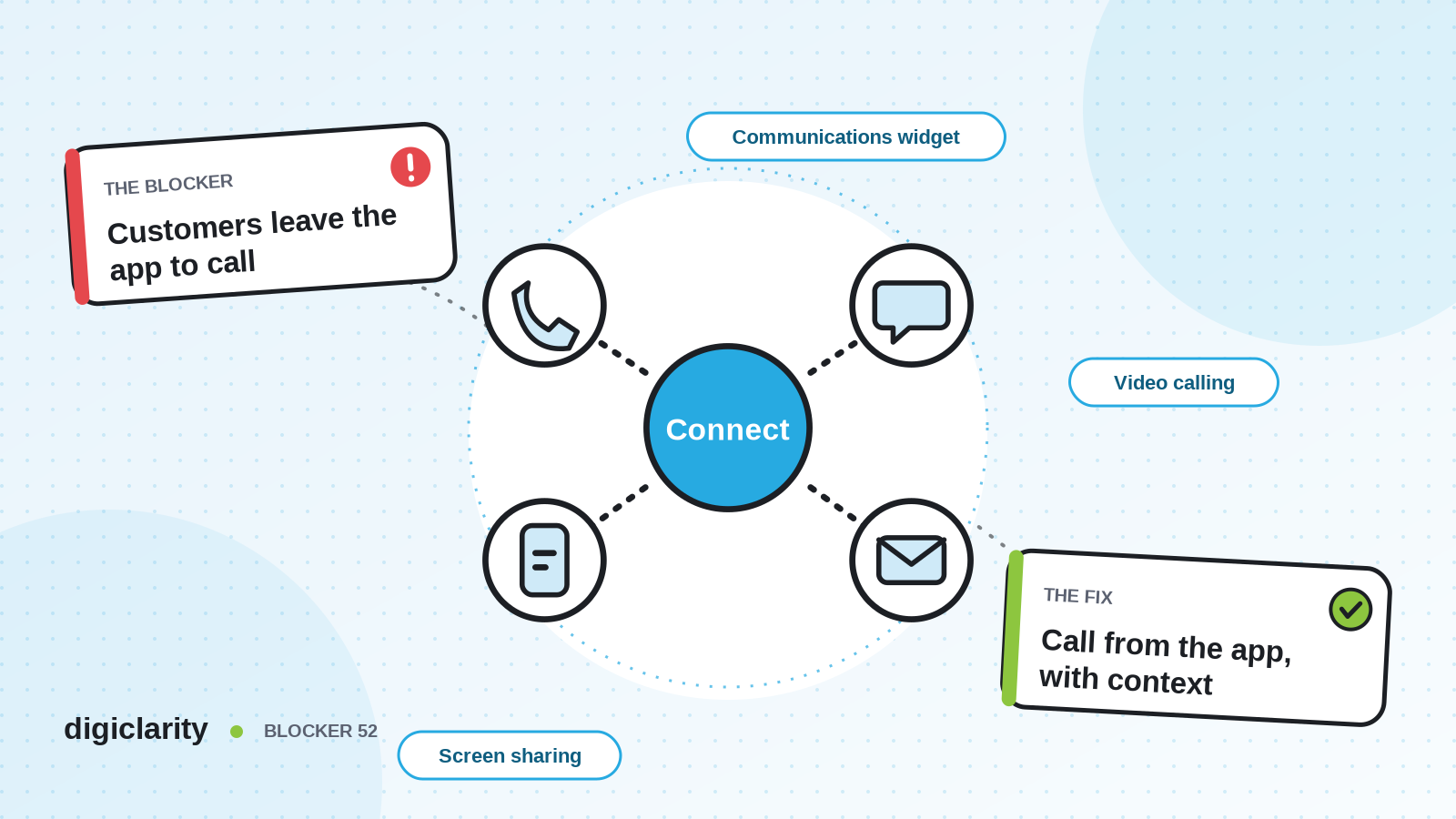
The blocker
A customer is signed in to your app, looking at an order that arrived damaged. They tap Help. The page shows a phone number. They leave the app, dial, and the IVR asks for the order number they were looking at a moment ago. Then the agent asks them to confirm their identity, and to describe a screen the agent cannot see.
Some teams fix part of this with a separate video or screen-share tool. Now agents have one system for phone calls and another for video, and the two sets of records never meet. The customer still started from zero.
Why it happens
- The phone line doesn’t know about the app. The call arrives with a caller ID and nothing else.
- Customers prove who they are twice. Once to sign in to the app, again to the IVR or the agent.
- Agents can’t see what the customer sees. Describing an error message or a form takes longer than showing it.
- Video lives outside the contact center. A separate tool means separate queues, separate reports and another screen for agents.
- Mobile customers lose their place. Switching from the app to the dialer, and back, is where the details get lost.
How Amazon Connect solves it
Amazon Connect in-app, web and video calling lets customers contact you without leaving your website or mobile app, and pass context into the call. There are two ways to add it: a hosted communications widget, or a native integration built with the Amazon Connect APIs and the Amazon Chime SDK client libraries. Either way, AWS notes that you use the same configuration, routing, analytics and agent workspace as telephone calls and chats.
1. Add a call button with the communications widget
You set up web calling on the Communication widgets page in the admin website. The same widget supports chat, voice, video and screen sharing. You choose whether customers can see the agent’s video, turn on their own video, and share screens. You set colors and a logo, then list the website domains where the widget may load, up to 50 of them. The widget loads only on the domains you add. At the end, you copy a code snippet into your site.
If you already use the widget for chat, this is the same tool. We covered the chat side in fixing web chat abandonment.
2. Build it into your mobile app
For a native experience, your app or web server calls the StartWebRTCContact API to create the contact. The app then joins the call with the Amazon Chime client library for iOS, Android or JavaScript, using the details the API returns. If your flows use keypad menus, the app can still send DTMF tones through the CreateParticipantConnection and SendMessage APIs.
Check device support early. AWS lists iOS 13 and later and Android 8.1 and later for the mobile SDKs, and the latest three versions of Chrome, Firefox, Safari and Microsoft Edge Chromium for the widget and JavaScript SDK.
3. Pass context so nobody asks twice
This is where in-app calling earns its place. With the widget, choose Yes under security, and Amazon Connect gives you a 44-character security key. Your web server uses it to sign a JSON web token (HS256, with an expiry of 10 minutes at most) that carries attributes such as the customer ID and the order they were viewing. Amazon Connect checks the token before it routes the call, which confirms that your server issued it.
You can also pass attributes straight from the snippet, without a token. AWS warns that these are still changeable in the browser, and recommends the token for personal data or anything that must not be altered.
With the API, the Attributes field takes up to 32,768 UTF-8 bytes across all key-value pairs per contact, and flows read them like any other contact attributes. Agents can see contact attributes in the Contact Control Panel or in your own agent application. Our post on transfers that lose context covers keeping that information with the contact after it moves.
4. Add video and screen sharing where they help
Agents need the Video calls - Access permission in their security profile to use video and screen sharing. The Amazon Connect agent workspace supports them. If you run a custom agent application, AWS notes that in-app and web calling need no changes, but video and screen sharing do need to be integrated.
Plan for privacy before launch. AWS states that agents can still see the customer’s video or shared screen while the customer is on hold, and that handling personal data on screen is the customer’s responsibility. To change that behavior, you build your own widget and agent application. With a native build, data messages can tell the customer they are on hold and their video is still being sent, or turn the video off.
You can also restrict which URLs can be shared. If someone shares a page that is not on the allowlist, the share pauses and goes black. This feature requires Chrome or Edge version 109 or later, and only a browser tab can be shared, not a window or the whole screen.
Some conversations need more people. Multi-user calling adds up to four more users or agents to a live or scheduled call, for six participants in total. It needs enhanced multi-party contact monitoring turned on, and your backend adds each person with the CreateParticipant API.
5. Route it like any other contact
A web or in-app call reaches a flow, is routed and waits in a queue, then an agent accepts it. Because the context arrives as attributes, the flow can branch on it. A Check contact attributes block can send a signed-in customer with an open claim straight to the claims queue, and skip the identity questions the app has already answered. You don’t build a separate routing setup for it: the queues, routing profiles and reports you already have apply.
What good looks like
A customer in your app taps Call us on a damaged order. The call connects without leaving the app. The agent’s screen already shows who they are and which order they were viewing. The agent asks to see the damage, the customer turns on video, and the claim is opened during the same call. If a family member needs to join, the app sends them a link and your backend adds them to the call. On the reports, it is one more contact in the claims queue, measured like the rest.
Where to start
- Pick one journey where customers already call after using your app or site, such as a failed payment or a delivery problem.
- Decide what context the agent needs, and agree which attributes your app will pass in a signed token.
- Set up a communications widget for that page, restricted to your domains, with security turned on.
- Write a flow that reads the attributes and routes on them, and give the pilot agents the video permission.
- Agree screen sharing and on-hold privacy rules with your compliance team before you turn on video for everyone.